Frequently Asked Questions
24 results
How do I create an invoice?
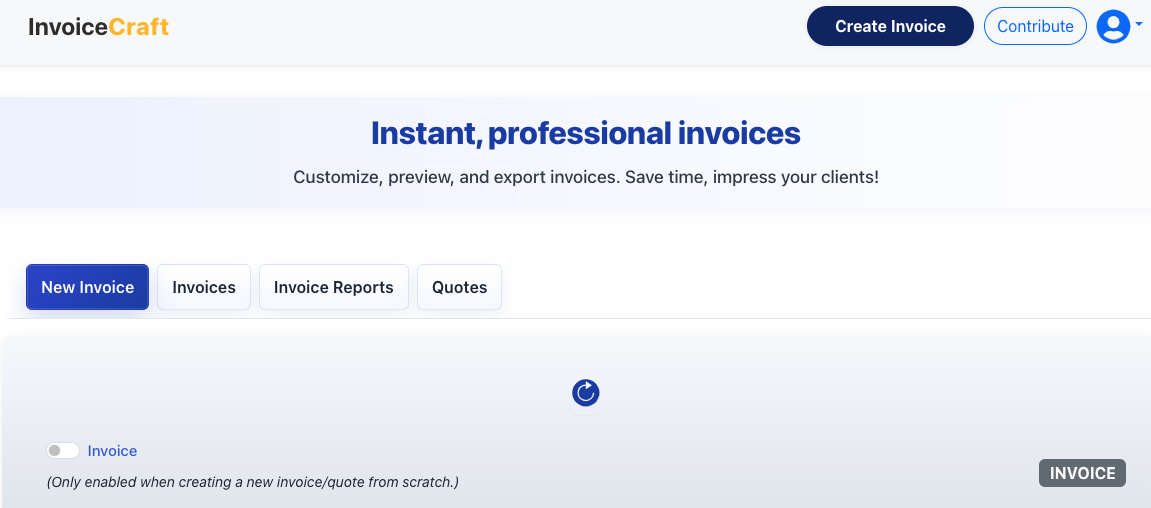
To create a new invoice or quote:
- Click ‘Create Invoice’ from the top menu, or use the ‘New Invoice’ button on your dashboard.
- You can switch between invoice and quote by toggling the radio button.
- Fill in required fields like Invoice Date, Due Date, and Currency.
- Fill in invoice items, tax, pick your currency...etc
- Once you're done click ‘Save Invoice’ to save it to your account.
How do I add items to an invoice?
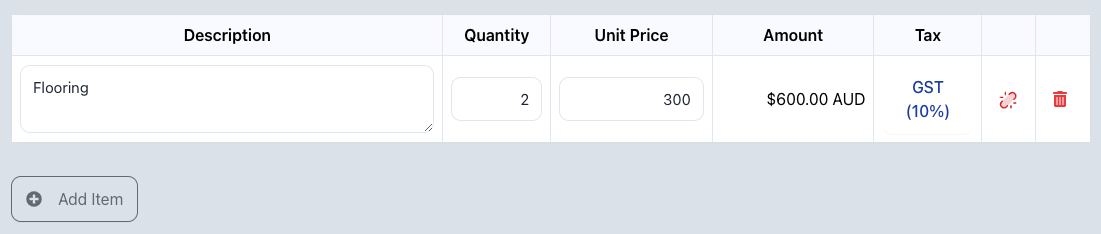
- Click ‘Add Item’ inside the invoice editor.
- Enter the item’s description, quantity, and unit price.
How do I add taxes to an invoice?
- In the invoice editor, find the item you want to add tax to.
- Click ‘Add Tax’ under the “Tax” column for that item.
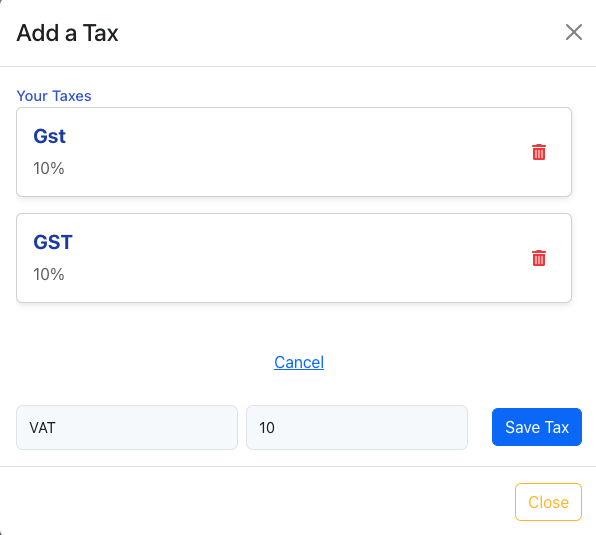
- Choose an existing tax or create a new one in the popup.
- The selected tax will appear in the item’s row and in the totals summary.
- Note: On the add Tax panel you cannot delete a tax that has been used in invoices/quotes.
To delete it first you need to remove it from all invoices, then delete it from the Tax panel.
Can I choose a different currency?
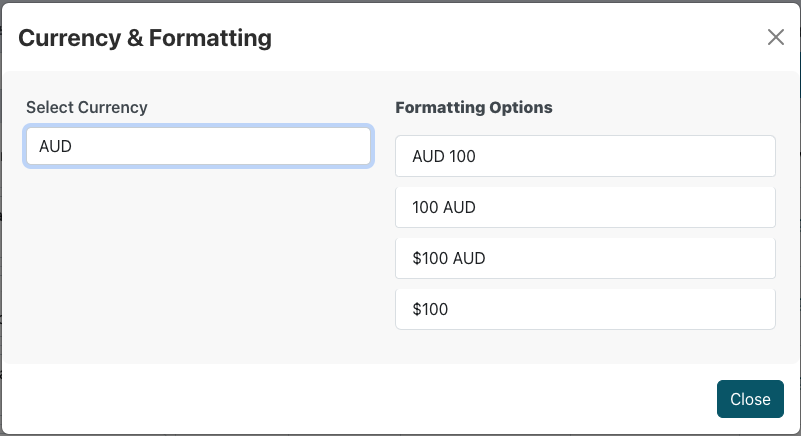
- In the invoice editor, click the ‘Currency’ dropdown.
- Select your preferred currency and display format (e.g., AUD 100, $100 AUD, etc.).
Where can I see my quote list and status?
Open Quotes to see all quotes with statuses like Draft, Sent, Accepted, or Rejected.
Tip: Filter quotes by customer, date range, or status to find exactly what you need.